
Bank Statement to Excel Sheet: The Cleanest Column Format
A bank statement sheet works best when every transaction is one row and Date, Description, and Amount each have one clear data type.
Start with three columns and one transaction per row
The cleanest bank statement Excel sheet has three core columns: Date, Description, and Amount. Each transaction occupies one row, the header appears once, and there are no blank separator rows, page headers, subtotals, or statement summaries inside the transaction table. This shape is compact enough for review and structured enough for sorting, filtering, formulas, and later imports.
Use one signed Amount column unless a destination explicitly requires separate Debit and Credit columns. In StatementMint’s standard export, purchases and other money-out activity are negative, while deposits, payments, refunds, and credits are positive. Keep that convention visible in a note or data dictionary so another person does not reverse the signs later.
| Column | Stored value | Recommended display | Avoid |
|---|---|---|---|
| Date | Excel date serial | mmm d, yyyy or yyyy-mm-dd | Ambiguous text such as 8/9/26 |
| Description | Text | Full source description; wrap text | Truncating or replacing the source wording |
| Amount | Number | Currency or Accounting, 2 decimals | Currency symbols stored inside text |
See the finished sheet structure
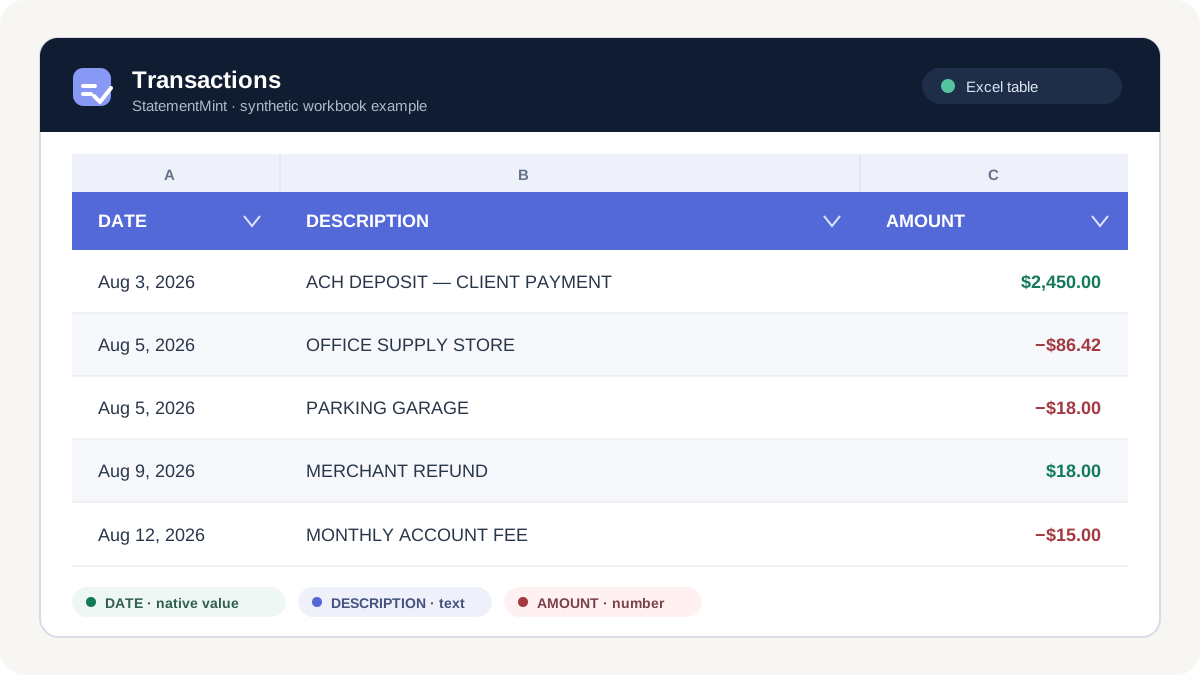
The synthetic example below shows the intended workbook shape. The filter controls belong in the single header row, descriptions stay searchable, and the Amount column contains numbers even though Excel displays currency symbols and two decimal places. Same-day transactions remain separate rows because repeated dates are normal.
The color is optional; the data types are not. A plain workbook with true dates and numeric amounts is more useful than a polished workbook built from text values that will not sort or total correctly.
Store dates as dates, not labels
A date’s display and stored value are different. Excel stores usable dates as serial numbers and applies a date format for display. Microsoft notes that dates stored as text can be identified by error checking or converted with DATEVALUE, and that a date column must contain date values for chronological sorting to work correctly.
Choose a display that matches the audience. The format mmm d, yyyy is readable in a review workbook; yyyy-mm-dd is compact and unambiguous for data exchange. Avoid two-digit years. If a statement spans December and January, confirm the year for each row against the statement period before sorting.
- Test the earliest and latest dates after sorting oldest to newest.
- Look for left-aligned values or green error indicators that may signal text dates.
- Do not fill a missing date unless the source clearly shows that the row continues the prior transaction.
- Keep the source transaction order until the extraction has been checked.
Keep amounts numeric and apply formatting afterward
The Amount cell should contain a number such as -86.42, not the text string −$86.42. Apply Currency or Accounting formatting to the cell after the value is stored. Microsoft explains that both formats display monetary values; Currency places the symbol beside the number, while Accounting aligns symbols and decimal points and typically displays negatives in parentheses.
For a transaction ledger, either display can work. Currency is compact and makes minus signs obvious. Accounting is useful when aligned symbols and parentheses match the reviewer’s convention. Use two decimal places for ordinary dollar statements, retain the workbook’s actual currency context, and never round the stored value merely to make the column look cleaner.
| Stored value | Currency display | Accounting display | Meaning in this export |
|---|---|---|---|
| 2450 | $2,450.00 | $ 2,450.00 | Money in |
| -86.42 | −$86.42 | ($ 86.42) | Money out |
| 18 | $18.00 | $ 18.00 | Money in |
Turn the range into an Excel table
Select any cell in the transaction range, choose Home > Format as Table, select a restrained style, and confirm that the table has headers. Microsoft documents that Excel tables add filter controls to the header row, making it easier to sort dates, search descriptions, and apply numeric filters without moving unrelated cells.
Name the table something clear such as Transactions. Freeze the header row for long statements, widen Description enough for review, and use Wrap Text rather than increasing row height manually. Do not merge cells inside the transaction table: merged ranges interfere with consistent row operations and downstream analysis.
- Date filter: limit the view to a month or statement period.
- Description filter: search a merchant, transfer type, or reference fragment.
- Amount filter: show values greater than, less than, or between thresholds.
- Sort: apply one deliberate table sort so the complete rows move together.
Add analysis without changing the source rows
If you need Category, Account, Month, Notes, or Reviewed columns, add them to the right of the core export or place them on a separate analysis sheet. Do not replace Description with a cleaned merchant name, and do not overwrite Amount with a category-adjusted value. Preserving the original three columns gives you a stable reference when a formula or classification rule changes.
Before relying on the workbook, compare transaction counts with the PDF, spot-check the first and last row on each transaction page, inspect the largest positive and negative amounts, and run =SUM(Transactions[Amount]) if the table is named Transactions. A correct total is useful, but it does not prove completeness because omitted money-in and money-out rows can offset each other.
Generate the formatted XLSX directly
When the issued PDF is the source you need, StatementMint creates CSV and formatted Excel output using Date, Description, and signed Amount. The workbook is intended for immediate sorting and filtering, but automated extraction can still make mistakes. Compare the result with the source PDF before relying on it and report a problem from the conversion page if a row is missing or wrong.
An anonymous preview processes one selected page. A free account can process a complete statement within the current daily page allowance, while paid plans publish higher monthly allowances. Pages outside the applicable allowance are not submitted for extraction.
Before you call it done
- One header row and one transaction per row
- Date cells contain date values
- Descriptions preserve the source wording
- Amount cells contain signed numbers
- Currency formatting is separate from stored values
- The range is formatted as an Excel table
- Analysis columns do not overwrite the three source columns
- Counts and selected rows are checked against the PDF
Frequently asked questions
What columns should a bank statement Excel sheet have?+
For a clean transaction ledger, use Date, Description, and a signed Amount. Add destination-specific fields only when needed, and keep optional analysis columns separate from the original source values.
Should bank statement amounts use one column or separate debit and credit columns?+
Use one signed Amount column for general spreadsheet analysis: money out is negative and money in is positive. Use separate Debit and Credit columns only when a specific import format requires them.
What is the best date format for bank transactions in Excel?+
Store dates as Excel date values. Display mmm d, yyyy for easy reading or yyyy-mm-dd for an unambiguous compact format. Avoid ambiguous text dates and two-digit years.
Why can’t Excel sort or total my statement correctly?+
The dates or amounts may be stored as text. Convert dates to actual Excel dates and amounts to numbers, then apply date and currency formatting to control how those values appear.
Sources and further reading
We prioritize regulators, public agencies, and first-party product documentation. Sources support the general guidance above; StatementMint’s workflow recommendations are our own.
- Create and format tablesMicrosoft Support
- Sort data in a range or table in ExcelMicrosoft Support
- Format numbers as currency in ExcelMicrosoft Support
- Convert dates stored as text to datesMicrosoft Support
Educational information only—not financial, accounting, tax, or legal advice. Institution terms and your facts control.